Getting Started with PrntFlow
PrntFlow is a Shopify app for POD t-shirt sellers that eliminates manual mockup uploads - merging your design graphics onto base mockups and assigning the right image to every color variant automatically.
Video Walkthroughs
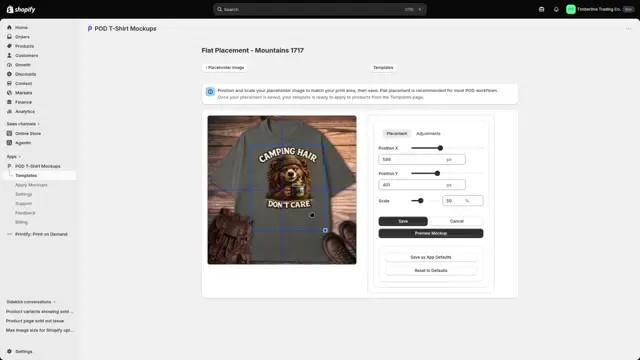
How to Create a Template
Building a template, from uploading mockups to placement and Template Settings.
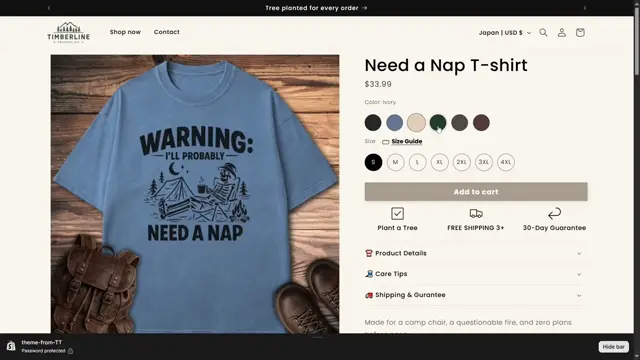
How to Apply Mockups
Applying a template to a product so PrntFlow merges and uploads a mockup for every color.
What PrntFlow Does (and Doesn't Do)
PrntFlow is an embedded Shopify app designed specifically for POD t-shirt sellers. It automates the process of merging design graphics onto base mockups and assigning them to color variants in your Shopify catalog. You bring your own winning mockup style - PrntFlow handles turning it into variant-specific product images.
PrntFlow Does NOT:
- Provide stock mockups or mockup libraries
- Create base mockup images or AI mockups - you bring your own
- Run Meta ads, manage ad campaigns, or optimize ad creative
Prerequisites
Before installing PrntFlow, make sure you have:
- A Shopify store with t-shirt products that have color variants. PrntFlow is designed for products with options like "Color: Black, White, Red, Yam" and works with products synced from POD platforms like Printify, Printful, Gelato, or Monster Digital.
- At least one winning mockup style. You need your own base mockup images per color (for example, a black t-shirt photo, white t-shirt photo, etc.) from whatever tool or service you use - Photoshop, Canva, Photopea, Affinity, or an AI tool.
- Permission to install apps and approve billing in Shopify. You'll need Shopify admin access to authorize PrntFlow and approve the monthly subscription charge.
Install & Authorize
Installation happens through the Shopify App Store. Once PrntFlow is live on the App Store, you'll install it like any other Shopify app. During setup, you'll be prompted to authorize PrntFlow to access:
Products & Variants (Read)
PrntFlow reads your t-shirt products and their color variants to build templates and select products for merging mockups. Product media is also updated when mockups are merged and assigned to variants.
Product Media (Read/Write)
PrntFlow uploads merged mockup images to your Shopify product media and assigns them to variants.
What PrntFlow Does NOT Access: PrntFlow does not access orders, customers, or payment details. All billing is handled through Shopify's app billing system.
Staff Permissions
PrntFlow is installed at the store owner level. If a staff account tries to use PrntFlow without the necessary Shopify permissions, some features will be unavailable. PrntFlow will display a clear in-app message explaining the issue.
Features That Require Product Permission
- Browsing products that don't yet have mockups applied
- Applying mockup templates to product variants
- Searching and selecting products during template creation
Features That Work for All Staff
- Viewing and managing templates
- Uploading and editing mockups
- App settings, billing, and account management
Granting Access: In your Shopify Admin, go to Settings → Users and permissions, select the staff member, and enable Products (read and write). Access is granted immediately - no reinstall required.
Your First Visit: The Dashboard
When you open PrntFlow from your Shopify admin for the first time, you'll land on the Dashboard. This is your command center for tracking mockup templates and product coverage.
The Dashboard Shows:
- Template count - How many mockup templates you've created (0 on a fresh install)
- Total products - The number of t-shirt products synced from Shopify
- Products with mockups - Products that have been processed through PrntFlow
- Products without mockups - Products that still need mockups
Getting Started Guide
For new installs, the Dashboard includes a Getting Started card with quick steps:
- • Create product templates and assign your available colors
- • Upload base mockups that represent each product color
- • Upload a placeholder image to set default placement and scale
You can return to the Dashboard anytime by clicking "Home" in the app navigation.
Core Workflow Overview
PrntFlow's workflow is organized around three main areas in the app navigation. Each serves a specific purpose in the template creation and mockup upload process.
Create Template
A guided wizard that walks you through creating a reusable mockup template. You'll name the template, pick a Shopify t-shirt product, upload base mockup images for each color variant, optionally group colors into light and dark shirts, upload a placeholder image to define placement, and set the default scale. Once saved, this template can be applied to any product with matching colors.
Manage Templates
A list of all your saved templates. From here, you can set a default template (which will be pre-selected when you upload mockups to products) and delete templates you no longer need. This is your template library-your collection of winning mockup styles ready to be reused across products and designs.
Apply Mockups
The main workflow for applying templates to products with real designs. Select a product from your Shopify catalog, choose a template (your default is pre-selected to save time), upload your design graphic(s), and click to apply. PrntFlow merges your design onto each color's base mockup, uploads the merged images to Shopify, and assigns the correct mockup to each color variant automatically.
Where to Go Next
Continue learning about PrntFlow:
Learn About Templates →
Understand how mockup templates work and how to create your first template.
Apply a Template →
Step-by-step guide to applying a template to a product with a new design.
Limits & Billing →
Variant limits, plans, pricing, and how Shopify billing works.
T-Shirt Print Area Guide →
Print area dimensions, file formats, resolution requirements, and design graphic specs for POD sellers.
Mockup Image Guide →
The right size, shape, background and format for your mockups, and what Shopify, Meta and Google expect.