Mockup Templates: How They Work
Templates let you reuse a winning mockup style across products and designs. Create once, apply everywhere.
This 6-minute video shows how to create a template in PrntFlow, from uploading a mockup for each color to placement and Template Settings.
Jump to a Step
What is a Mockup Template?
A mockup template is a reusable configuration that captures your winning mockup style. It defines how your design graphics should appear on t-shirt mockups across different color variants. Once you've created a template, you can apply it to multiple products and designs without redoing the setup work.
A Template Stores:
- Source t-shirt product - The Shopify product used to define available colors
- Color variants - The list of colors from the source product (e.g., Black, White, Red, Yam)
- Base mockup image per color - Your mockup image for each color (e.g., black-tee.png for Black variant)
- Optional light/dark shirt groups - Grouping colors so you can use different graphics for light vs dark shirts
- Design placement & scale - Position, size, and rotation of the design graphic defined with a placeholder image
- Optional visual enhancements - settings like flat vs Fold-Following placement, brightness/contrast adjustments, or displacement effects for a realistic printed-on-fabric result
Creating Your First Template
The template creation wizard in PrntFlow guides you through six steps. Each step builds on the previous one to create a complete, reusable mockup template.
Name Your Template and Choose a Product
Start by entering a template name. The name cannot be empty-if you try to proceed without one, the app will show an error.
Next, search and select a Shopify t-shirt product from your store. PrntFlow reads the product's variants and color options to build the template. The selected product must have at least one color variant, otherwise you'll see an error like "Selected product has no colors."
You can also tick a "Set as default template" checkbox. Only one template can be the default at a time-this will pre-select your template when uploading mockups to products later.
Upload Base Mockups per Color
For each color in your chosen product, you'll see a file input to upload a base mockup image. Supported formats are PNG and JPG, up to about 50 MB per image. Output images can be up to 4000 × 4000 px, set in Template Settings.
Example uploads:
- •
black-tee-mockup.png→ Black variant - •
white-tee-mockup.png→ White variant - •
red-tee-mockup.png→ Red variant - •
yam-tee-mockup.png→ Yam variant
Colors without a base mockup won't receive mockups when you apply the template later.
Output size: PrntFlow resizes every mockup to the template's output size (default 2048 × 2048 px). A larger mockup scales down cleanly. A smaller one gets enlarged and looks soft, and a different shape gets stretched. For the sharpest results, upload each mockup at exactly the output size.
Size warnings: Upload Mockups, Edit Mockups and Template Settings warn you when a mockup will be enlarged more than 1.25x, will be stretched (its shape is more than 2% off the output size), or is under 800 px on its shortest side. Warnings never block you. To turn them off for a template, untick "Warn me when mockup sizes don't match the output size" in Template Settings.
Transparent mockups: Ghost mannequin and other mockups with transparent backgrounds work. PrntFlow fills transparent and partly transparent areas with the Background color, white (#ffffff) by default. Set it for your whole store in Settings or per template in Template Settings.
For sizes, shapes, backgrounds and what Meta and Google expect, see the Mockup Image Guide.
Group Colors into Light and Dark (Optional)
Color Grouping is an optional but powerful feature that lets you use different design graphics for different apparel colors when applying a template to a product. By grouping your colors into two design graphics, you can automatically send the right graphic to the right shirt color - no manual decisions needed each time.
Default and Alternate Designs
Default Design - dark apparel (Required)
The Default Design is the default graphic. If you have not configured Color Grouping, all colors use the Default Design. If you have set up Color Grouping, the Default Design is used for colors you have assigned to the dark apparel group - typically black, navy, dark grey, and similar colors.
Alternate Design - light apparel (Optional)
The Alternate Design is only active when at least one color has been assigned to the light apparel group in Color Grouping. When active, colors in the light apparel group use the Alternate Design instead of the Default Design. If the Alternate Design is left empty when applying a template, all colors fall back to using the Default Design.
Example: You sell a t-shirt in Black, White, Red, and Cream. You assign Black and Red to the dark apparel group (Default Design) and White and Cream to the light apparel group (Alternate Design). When applying the template, you upload a white graphic as the Default Design for dark shirts and a black graphic as the Alternate Design for light shirts. PrntFlow automatically uses the right graphic for each color.
Note: If you skip Color Grouping entirely, all colors use the Default Design. The Alternate Design only becomes active in the Apply Mockups screen when at least one color has been assigned to the light apparel group for the selected template.
Upload a Placeholder Image
A placeholder image is a stand-in graphic you upload once when building a template. It's not your real design - it's any graphic with similar dimensions to the designs you plan to use. Its sole purpose is to let you set the correct position and scale in the placement editor so that every real design you apply later lands in exactly the right place.
The placeholder is never used in final mockups. When you apply the template to a real product, PrntFlow uses your actual design graphic - not the placeholder. The placeholder only lives in the template editor.
What makes a good placeholder:
- A previous design graphic from the same template style
- Your brand logo or any transparent PNG
- A simple shape or box the same size as your typical design
The most important thing is that your placeholder is close in dimensions to the design graphics you'll actually use. PrntFlow will show a warning if your real graphic's dimensions differ significantly from the placeholder - this means placement may be slightly off and you may want to adjust.
Supported formats: PNG only (transparent background required). The design is merged onto the shirt, so everything around the artwork must be transparent, and JPG can't store transparency.
For guidance on print area dimensions and what size your graphics should be, see the T-Shirt Print Area Guide.
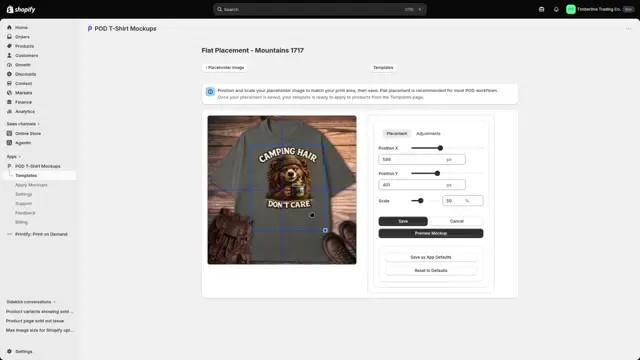
Set Default Placement
Using the interactive placement editor, drag your placeholder image into position on the base mockup and adjust the scale so the design sits correctly - typically on the chest area of the t-shirt.
You can choose between two placement modes:
- • Flat placement - The design is placed directly on the mockup without distortion
- • Fold-Following placement - the design follows the folds and contours of the shirt for a more realistic printed-on-fabric result
Placement is stored as normalized X/Y/scale values, so it adapts to different output dimensions while maintaining the same relative position and size.
Review and Save the Template
Before saving, review the template summary showing your template name, selected product, colors, and placement settings.
When you click "Save Template," PrntFlow saves everything: the template name, product reference, base mockup images, color groupings, placeholder image, and default placement.
After saving, you're redirected to the template list, and your new template becomes immediately available in the Apply Mockups workflow.
Default Templates
Only one template can be set as the default at a time. The default template is automatically pre-selected when you open the Apply Mockups screen, saving you time on repeat workflows.
- • You can mark your first template as default during the creation wizard by ticking the "Set as default template" checkbox
- • To change the default later, go to Manage Templates and set a different template as default
- • When you set a new default, PrntFlow automatically unmarks the previous default template
- • Having a default template streamlines the mockup upload process-your most-used template is always ready to go
Reusing Templates Across Products
Once a template is saved, you can apply it to any t-shirt product in your Shopify store that has similar color variants. Templates are the main way to keep your mockups consistent across your catalog.
Example:
You create a template called 'Summit Style 01' from a product with Black, White, Ash, and Forest variants. You upload a base mockup for each color and define the placement using a placeholder image.
For every new design you create, select a different t-shirt product with matching colors, upload your design graphic, choose 'Summit Style 01', and PrntFlow merges mockups using the same placement, base mockups, and settings - every time.
Updating a Template
You can edit templates later if you need to change the placement, swap out base mockups, or adjust visual settings. When you update a template, future applies of that template will use the updated configuration.
Note: Updating a template does not automatically refresh mockups for products that already used the previous version. Existing product media in Shopify remains unchanged. To apply the updated template to existing products, re-apply it to those products manually.